
Why Lights are Blinking on My Canon Printer? – Error 5b00
Printers are intricate pieces of hardware, presenting challenges when malfunctions occur. A common issue that has plagued Canon printer users is the 5B00 error. Our findings indicate that this problem impacts nearly all models, displaying the message: Support Code: 5B00 A printer error has occurred.

This error prevents both scanning and printing functions, leading many to consider purchasing a new printer. However, before taking that step, there is a potential solution worth exploring for those encountering the 5B00 error on their Canon printer.
Why am I getting Canon 5B00 error?
Here are a few reasons you might be getting the error on Canon printer:
1. Ink leakage:
If a defective cartridge was installed, it is likely that an ink leakage occurred, resulting in the error.
2. Waste Ink Counter (WIC) has hit the limit:
Using the Canon printer will become problematic when the WIC reaches its maximum limit. This can be fixed by resetting the counter.
3. Saturated ink absorbing pads:
Over a period of time, the ink absorber pads become saturated with the excess ink during the cleaning process, resulting in the appearance of error 5B00 on Canon printers.
How do I fix Canon 5b00 error?
Solution: Reset the Waste Ink Counter
It is advisable to avoid repeatedly attempting this solution as the absorber pads will become fully saturated, potentially causing significant leakage. Nevertheless, making a few quick successive attempts, in case the initial try was unsuccessful, should not pose any risk.
1. Begin by powering down the printer.
2. Press and hold the Stop button, then proceed to simultaneously hold the Power button in order to power on the printer.
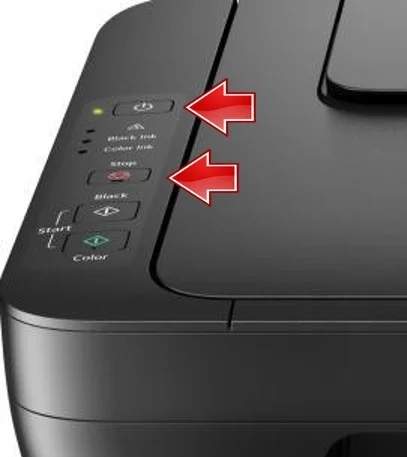
3. With the Power button still held, press the Stop button 5 times to make the printer enter the Service Mode, and then release the Power button.
4. Next, press the Stop button thrice and then the Power button once to print a Service Page.
5. Finally, press the
Stop
button 5 times, followed by the Power button one last time.
Watch YouTube Video to Fix Canon Error 5B00.
This particular solution for Canon error 5B00 is among the limited options that have proven effective for users. It allows you to reset the Waste Ink Counter without the need to clean any components.